 |
|

 | Chapter 4 - Monitoring |
4.3 Sterling Commerce
4.3.1 CONNECT:Direct Stuck Process Check
4.3.3 Gentran Stuck Document Check 4.3.4 Gentran Queue Length Check
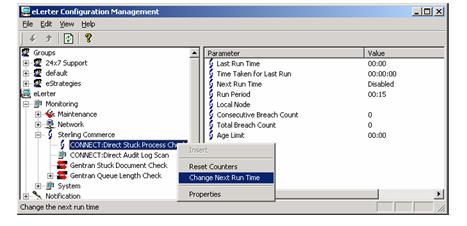
4.3.1 CONNECT:Direct Stuck Process CheckThe CONNECT:Direct Stuck Process Check will examine the Process (TCQ) queue of CONNECT:Direct searching for documents that have not been processed in a timely manner. You may instruct eLerter that you wish to know about processes that have not been processed ‘x’ minutes passed the scheduled process start time. Enabling and Disabling CONNECT:Direct Stuck Process CheckTo enable the CONNECT:Direct Stuck Process Check, use the right mouse key to select CONNECT:Direct Stuck Process Check in the left hand pane of the configuration manager. This action will enable you to click on the Change Next Run Time option – see Figure 4.3.1.1. For assistance on changing the next run time or changing properties, click here.
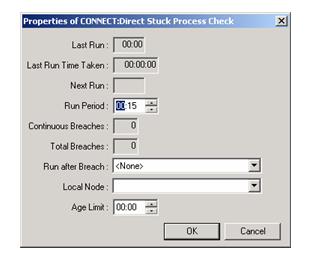
Modifying the CONNECT:Direct Stuck Process CheckTo change the properties of the CONNECT:Direct Stuck Process Check, select the CONNECT:Direct Stuck Process Check from the left-hand pane of the configuration manager. Right mouse click on the option and select Properties from the menu. The following dialog box will appear (Figure 4.3.1.2).
This dialog box provides CONNECT:Direct information and the ability to modify parameters. The table below describes the contents:
4.3.2 CONNECT:Direct Audit Log ScanThe CONNECT:Direct Audit Log Scan scans the CONNECT:Direct STAT table for entries that:
CONNECT:Direct currently allows the user to enter a comma separated list of RecIds, ensuring that these records are logged in the NT Event Log, no matter what the condition code. There are advantages in using the eLerter scan as opposed to the native CONNECT:Direct scan. These are as follows:
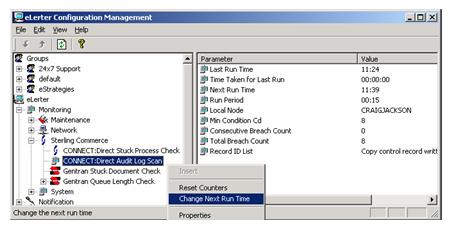
For a list of CONNECT:Direct RecIds, please refer to Appendix A. Enabling and Disabling CONNECT:Direct Audit Log ScanTo enable the CONNECT:Direct Audit Log Scan, use the right mouse key to select CONNECT:Direct Audit Log Scan in the left hand pane of the configuration manager. This action will enable you to click on the Change Next Run Time option – see Figure 4.3.2.1. For assistance on changing the next run time or changing properties, click here.
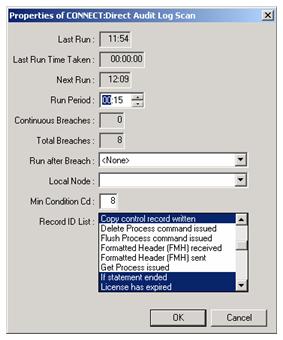
Modifying the CONNECT:Direct Audit Log ScanTo change the properties of the CONNECT:Direct Audit Log Scan, select the CONNECT:Direct Audit Log Scan from the left-hand pane of the configuration manager. Right mouse click on the option and select Properties from the menu. The following dialog box will appear (Figure 4.3.2.2).
This dialog box provides CONNECT:Direct information and the ability to modify parameters. The table below describes the contents:
4.3.3 Gentran Stuck Document CheckThis check finds Gentran Documents that are left in the In or Out Documents area and Interchanges in the Interchange Queue that have a ‘Sent Time’ set to blank and that were created more then ‘x’ minutes ago. Entries will be written in the NT Event Log as:
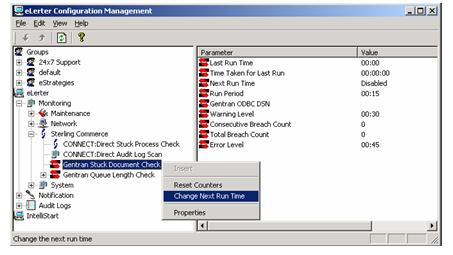
Enabling and Disabling the Gentran Stuck Document CheckTo enable the Gentran Stuck Document Check, use the right mouse key to select Gentran Stuck Document Check in the left hand pane of the configuration manager. This action will enable you to click on the Change Next Run Time option – see Figure 4.3.3.1. For assistance on changing the next run time or changing properties, click here.
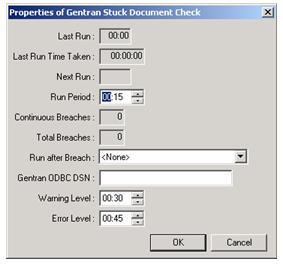
Modifying the Gentran Stuck Document CheckTo change the properties of the Gentran Stuck Document Check, select the Gentran Stuck Document Check from the left-hand pane of the configuration manager. Right mouse click on the option and select Properties from the menu. The following dialog box will appear (Figure 4.3.3.2).
This dialog box provides Gentran information and the ability to modify parameters. The table below describes the contents:
4.3.4 Gentran Queue Length CheckThere are a number of document and interchange queues in the Gentran software. For Documents these queues are:
For Interchanges these queues are:
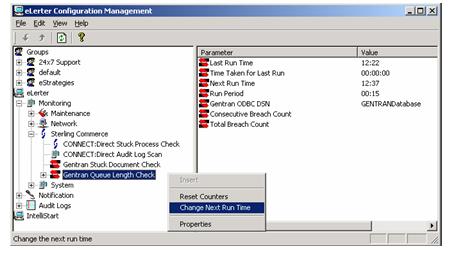
A backlog of documents in these Gentran queues may simply indicate a temporary build-up of documents or it may indicate a potential problem. The eLerter Gentran Queue Length check allows you to be notified when there are more then ‘x’ documents or interchanges in a queue. Enabling and Disabling the Gentran Queue Length CheckTo enable the Gentran Queue Length Check, use the right mouse key to select Gentran Queue Length Check in the left hand pane of the configuration manager. This action will enable you to click on the Change Next Run Time option – see Figure 4.3.4.1. For assistance on changing the next run time or changing properties, click here.
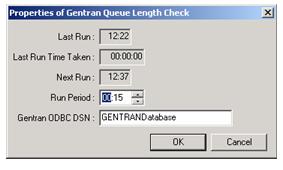
To change the properties of the Gentran Queue Length Check, select the Gentran Queue Length Check from the left-hand pane of the configuration manager. Right mouse click on the option and select Properties from the menu. The following dialog box will appear (Figure 4.3.4.2).
This dialog box provides Gentran information and the ability to modify parameters. The table below describes the contents:
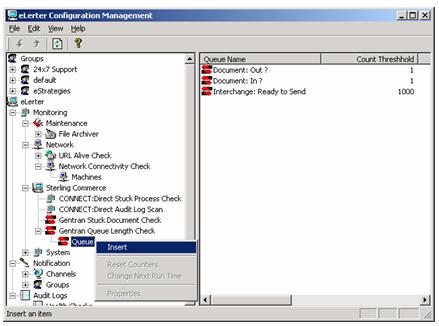
Inserting a Gentran Queue Length CheckTo add a new check to the Gentran Queue Length Check, use the right mouse click to select Insert in the left-hand pane of the configuration manager, see Figure 4.2.4.3. This action will enable you to begin adding a new Gentran Queue Length check.
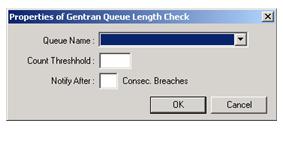
The following dialog box will be displayed.
Table 4.3.4.2 describes the field properties.
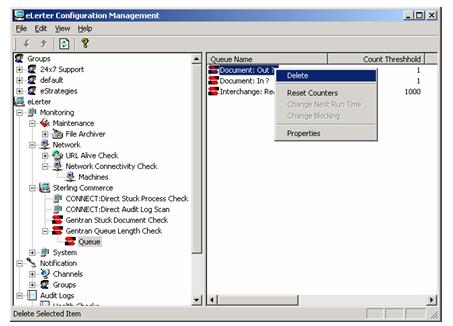
Deleting a Gentran Queue Length CheckHighlight the Gentran Queue Length check (or checks) you wish to delete from the Queue Name column (as shown in Figure 4.3.4.5). Either left mouse click to bring up the delete option or delete the file using the keyboard delete button.
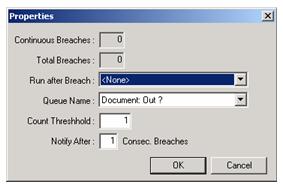
Modifying a Gentran Queue Length CheckTo change the properties of a Gentran Queue Length Check, select the Queue from the Queue Name column in the right-hand pane of the configuration manager. Double click on the selected Queue and the following dialog box will appear (Figure 4.3.4.6).
This dialog box provides Queue information and the ability to modify parameters. The table below describes the contents:
|