This tool provides general housekeeping for your system. Common maintenance tasks you may wish to perform can include file archiving and file transfer between computers. Figure 4.1.1 shows you how to access the maintenance agent.
4.1.1 File Archiving
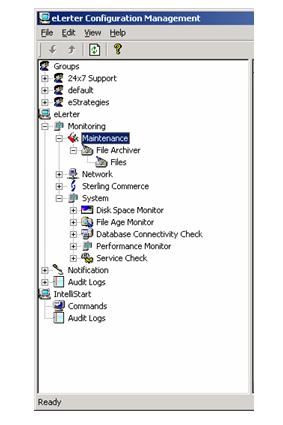 |
Figure 4.1.1 – eLerter Maintenance |
eLerter has an in-built file archiving module. The File Archiving tool (see Figure 4.1.1.1) allows you to keep your system manageable by archiving, deleting or moving old files as you require. When files reach a predetermined ‘age’ you can specify for these files to be archived, deleted or moved to internal or remote disk shares. You define which files to monitor, the ‘age’ of the file for archive, and which action (archive, move or delete) to perform when the file age has been exceeded. An entry recording the archive action will be written to the NT Application Event Log.
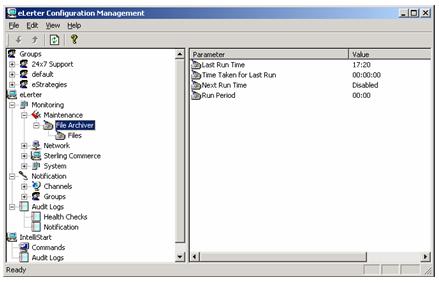 |
Figure 4.1.1.1 – File Archiver |
The following table provides a description of the parameters displayed in the right-hand pane of the configuration manager.
Property | Description |
| Last run time |
Time of most recent action |
| Time taken for last run |
How long it took the system to run the process (recorded in seconds) |
| Next Run Time |
The time the next action will begin |
| Run period |
How regularly the process will occur. Eg. ‘15’ would indicate the process will run every 15 minutes |
Table 4.1.1.1 Tool Property List |
To enable the tool, use the right mouse key to select ‘Change Next Run Time’ option – see Figure 4.1.1.2.
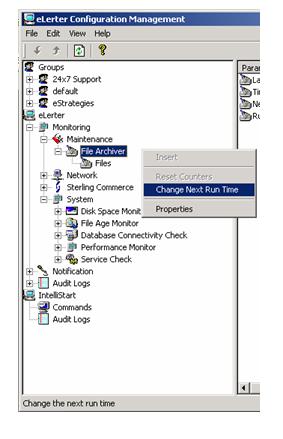 |
Figure 4.1.1.2 – Change next run time |
Within this dialog box is an enable/disable check box – see Figure 4.1.1.3. Check the ‘enabled’ box to enable the tool. Likewise, un-check the box to disable the tool.
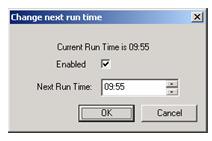 |
Figure 4.1.1.3 – Enabled/Disabled |
Enter the new run time in the dialog box by either typing in directly or using the arrows to change the existing time. In the initial setup, enter the time directly using the 24 hour format hh:mm:ss.
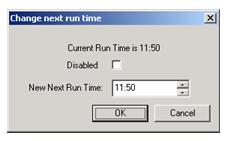 |
Figure 4.1.1.4 Changing Run Time |
The Run Period indicates to eLerter how often to run the tool. To change the run period, use the right mouse key to select the Properties option.
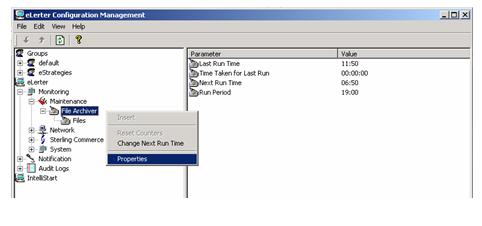 |
Figure 4.1.1.5 Properties |
The following dialog box will be displayed:
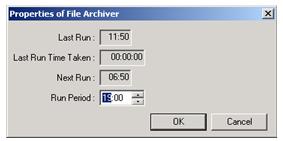 |
Figure 4.1.1.6 Tool Properties |
Enter the new run period, in minutes into the Run Period field. Note that a run period of zero (0) minutes indicates to eLerter that the check will be run at the same time each day.
To add a new file to the File Archiver, use the right mouse click to select Files in the configuration manager. This action will enable you to click on the Insert menu item and begin adding a new file.
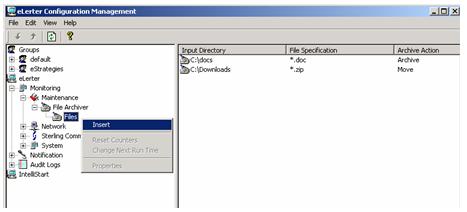 |
Figure 4.1.1.7 File Insert |
The following dialog box will be displayed.
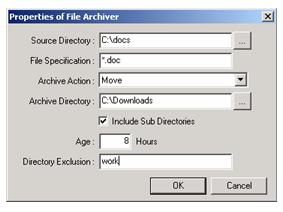 |
Figure 4.1.1.8 File Insert Properties |
Property | Description |
| Source Directory |
Source Directory allows you to enter or browse for the file or directories to be archived |
| File Specification |
This field specifies the type of file type to include in the archive process eg. You may specify that only HTML or .exe files are archived |
| Archive Action |
There are three archive action options:
* Archive – this will zip all files then relocated the zipped file to the destination directory
* Delete – will delete all files
* Move - will move files in current format to destination directory
|
| Archive Directory |
The Archive Directory specifies the destination location for files that have been archived or moved. Either enter the destination path or use the browse bottom to select a destination file path |
| Include Sub-directories Flag |
A check in this box will indicate to eLerter to treat all files or directories stored below the input directory to be treated in the same manner |
| Age |
Age indicates to eLerter when to archive the specified files. Eg 8 would mean eLerter will archive all the specified files once they are over 8 hours old |
| Directory Exclusion |
Directory exclusion offers a parameter for directories within the specified directory structure to be excluded from the process |
Table 4.1.1.2 File Archiver Properties |
Highlight the file or files you which to delete from the File Archiver input directory. Either left mouse click to bring up the delete option or delete the file using the keyboard delete button.
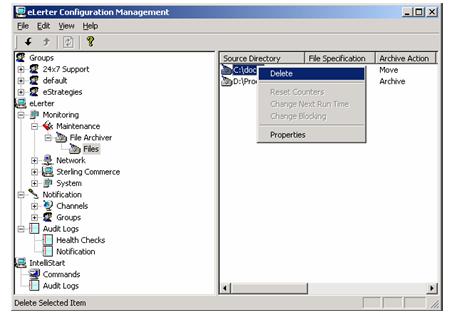 |
Figure 4.1.1.9 File Delete |
To change the properties of a file or directory that is in the File Archiver, select the file from the Input Directory in the configuration manager. Double click on the selected file to bring up the following dialog box:
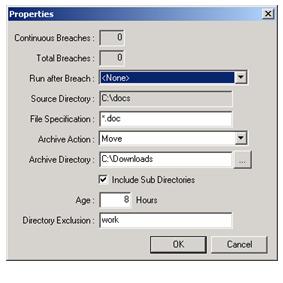 |
Figure 4.1.1.10 File Modification Properties |
This dialog box provides archive information and capacity to modify the archive parameters. The table below describes the contents:
Property | Description |
| Source Directory |
The directory that is to be archived. NB. You cannot change the directory in this field. To change a Source Directory you need to add a new file and delete the existing file (see instructions above) |
| File Specification |
This field specifies the type of file type to include in the archive process eg. You may specify that only HTML or .exe files are archived |
| Archive Action |
There are three archive action options:
* Archive – this will zip all files then relocated the zipped file to the destination directory
* Delete – will delete all files
* Move - will move files in current format to destination directory
|
| Archive Directory |
The Archive Directory specifies the destination location for files that have been archived or moved. Either enter the destination path or use the browse bottom to select a destination file path |
| Include Sub-directories Flag |
A check in this box will indicate to eLerter to treat all files or directories stored below the input directory to be treated in the same manner |
| Age |
Age indicates to eLerter when to archive the specified files. Eg 8 would mean eLerter will archive all the specified files once they are over 8 hours old |
| Directory Exclusion |
Directory exclusion offers a parameter for directories within the specified directory structure to be excluded from the process |
Table 4.1.1.3 File Properties |